|
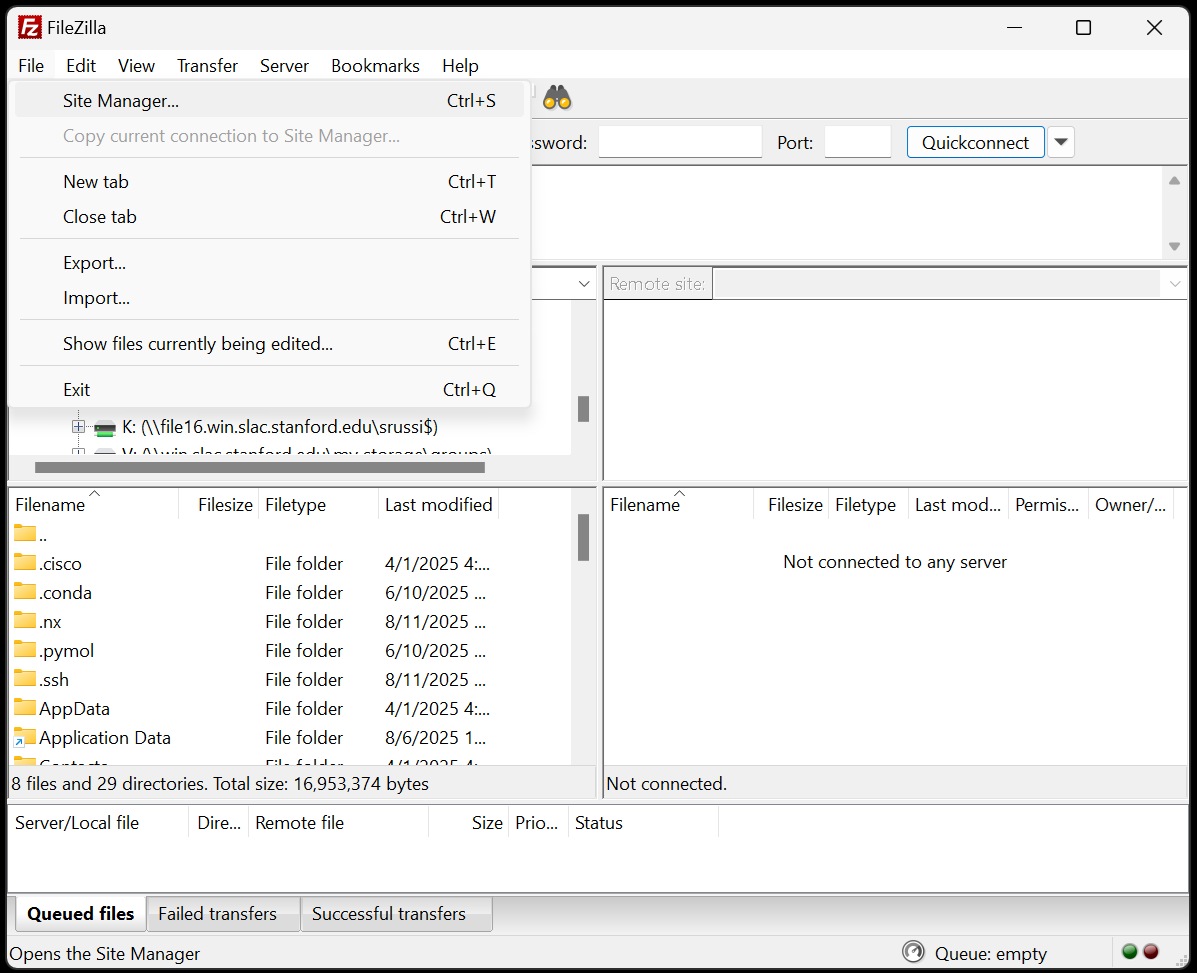
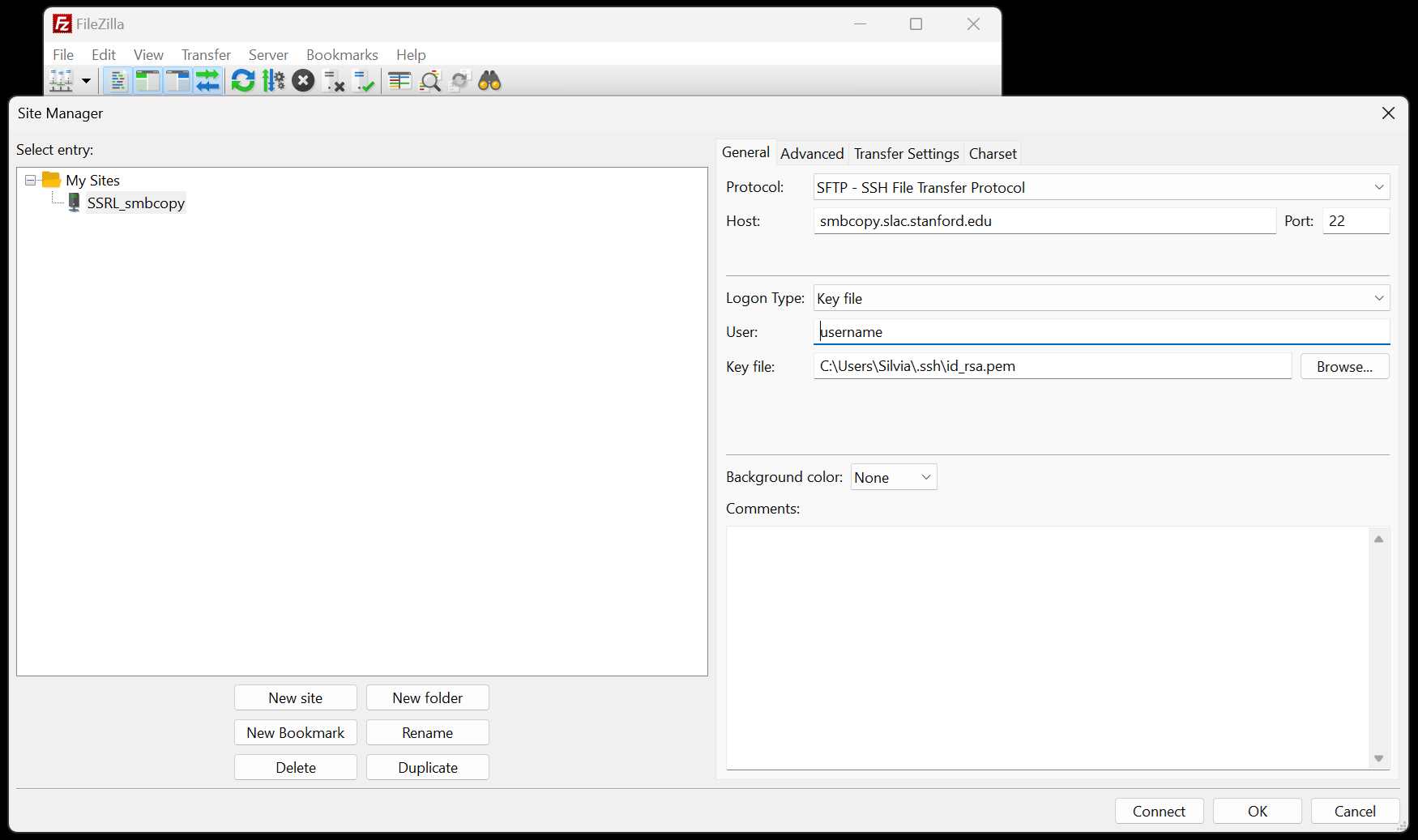
Installing and configuring FileZilla clientThis document briefly describes how to download and configure FileZilla client to enable remote access to smbcopy.slac.stanford.edu to back up the data. Download and installationDownload the package of FileZilla client that matches your operating system (Windows, Mac OS X or Linux). Follow the installation instructions provided on the FileZilla site. Configure
|
||
|
|
||
| Technical questions:
Webmaster
|
||
| Last modified:Monday, 08-Sep-2025 16:19:15 PDT. | ||